Install Rust: Steam Download & Setup Guide
You've watched a Rust player defend their base against a raid, seen an entire compound disappear overnight, and decided it's finally time to try the game yourself. Before you can gather your first resources or build your first shelter, you need to get Rust running on your computer.
Installing Rust is straightforward, but checking your hardware and choosing the correct download source can save you a frustrating first experience.
This guide covers how to install Rust through Steam, what your PC needs to run it, how to fix common download problems, and what to do after launching the game for the first time.
What Is Rust and Where Can You Download It?
Rust is an online multiplayer survival game developed by Facepunch Studios. Players enter a hostile world, gather resources, craft equipment, construct bases, and interact with other survivors.
The game is available on Steam for supported Windows and macOS computers.
Unlike many traditional games, Rust does not have a fixed campaign. Your experience depends on the server you join, the resources you collect, and the players you encounter.
You can purchase and download the original PC game through the official Rust Steam Store.
Rust is a paid game. You do not need to download a separate launcher, unofficial installer, or modified executable to play it.
Rust System Requirements for PC
Before purchasing Rust, check whether your computer meets the game's current system requirements.
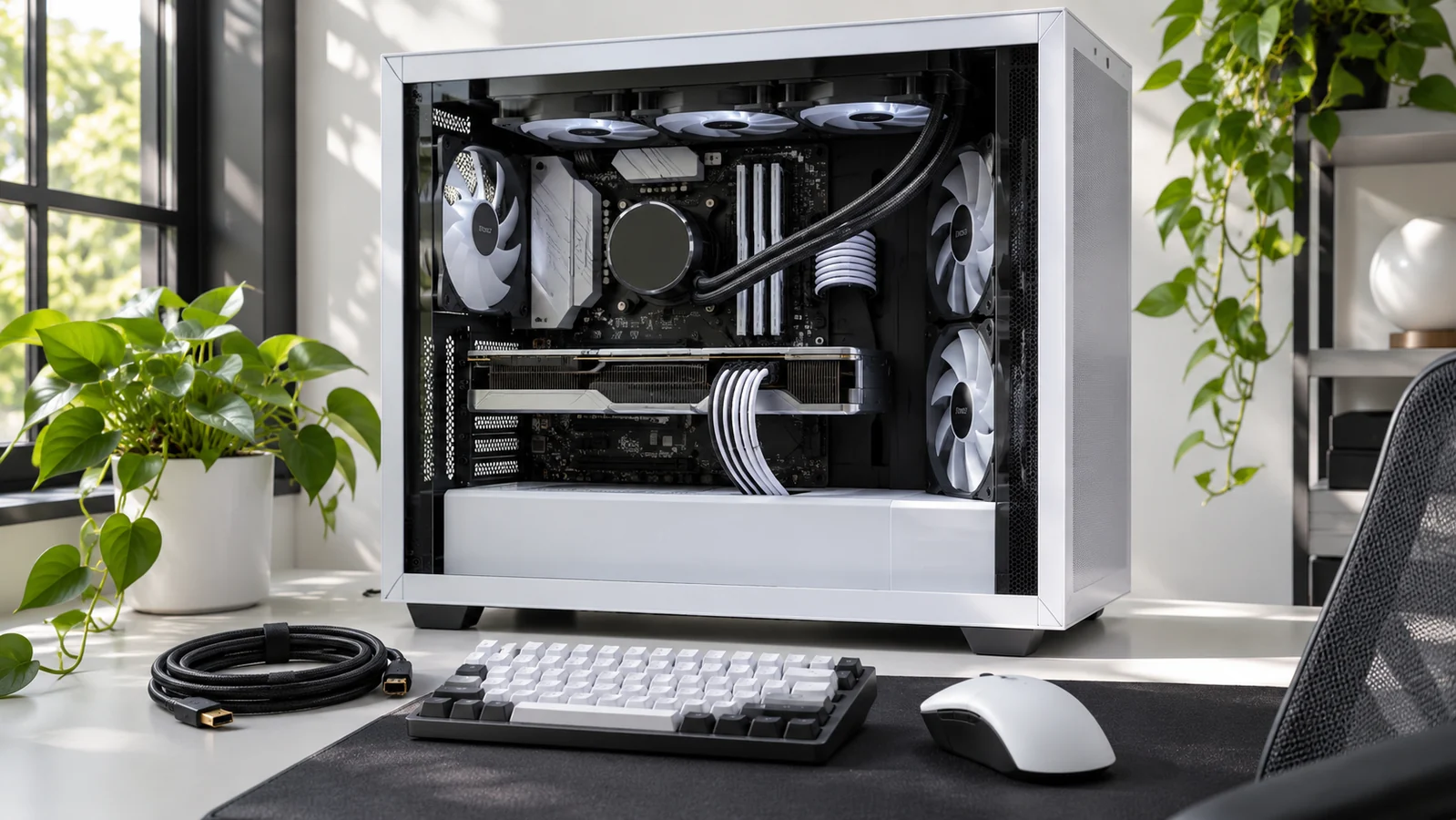
Rust features large multiplayer environments, complex bases, and numerous player-created structures. Its performance depends on your processor, graphics hardware, memory, and storage speed.
Minimum Windows Requirements
- Operating system: Windows 11 64-bit.
- Processor: AMD Ryzen 5 1400 or Intel Core i5-6600.
- Memory: 12 GB RAM.
- Graphics: AMD Radeon RX 470, NVIDIA GeForce GTX 1060, or Intel Arc A580.
- DirectX: Version 11.
- Storage: 45 GB of available space.
- Internet: Broadband connection.
An SSD is strongly recommended. Installing Rust on a mechanical hard drive can result in considerably longer loading times.
Recommended Windows Requirements
- Operating system: Windows 11 64-bit.
- Processor: AMD Ryzen 7 3700X or Intel Core i7-6700K.
- Memory: 16 GB RAM.
- Graphics: AMD Radeon RX 6600 XT, NVIDIA GeForce RTX 3060, or Intel Arc B580.
- DirectX: Version 12.
- Storage: 45 GB of available space on an SSD.
These requirements are based on the official Steam listing. Actual performance can vary depending on the server, graphics settings, and number of structures in the surrounding area.
Check the official store before purchasing because hardware requirements may change with future updates.
How to Install Rust on Steam
The standard installation process uses the Steam client. If you already own Rust, you can skip the purchasing steps and install it directly from your library.
Step 1: Download Steam
Visit the official Steam website and download the client for your operating system.
Install Steam, open the application, and sign in to your account.
If you do not have a Steam account, create one through the official registration process.
Step 2: Find Rust in the Steam Store
Open the Steam Store and search for Rust.
Make sure you select the survival game developed by Facepunch Studios rather than another product with a similar name.
Open its store page and review the system requirements, supported operating systems, and current purchase price.
Step 3: Purchase Rust
Add Rust to your cart and complete the purchase using an available Steam payment method.
Once the transaction is complete, the game will appear in your Steam library.
If you already own Rust on your account, you do not need to purchase it again to reinstall it on another compatible computer.
Step 4: Choose Your Installation Location
Open your Steam Library, find Rust, and select Install.
Steam will ask you to choose an installation location.
If your computer has both an SSD and a traditional hard drive, select the SSD when sufficient space is available.
Make sure the selected drive has enough free space for the game, updates, and temporary installation files.
Step 5: Download the Game
Confirm the installation and allow Steam to download the necessary files.
The download time depends on your internet connection, Steam's download servers, and your storage performance.
You can monitor the process through Steam's Downloads section.
Once the installation finishes, Rust will be ready for its initial setup.
How to Launch Rust for the First Time
Open your Steam Library and select Play.
Steam may perform additional setup tasks, including installing required software components.
Allow these processes to finish before attempting to join a server.
The first launch may take longer than subsequent launches, particularly when the game is preparing files or loading resources for the first time.
Once the main menu appears, check your graphics, audio, and control settings.
Start with settings appropriate for your hardware rather than immediately selecting the highest graphics preset.
How to Install Rust on macOS
Rust also has an official macOS version available through Steam.
The current minimum requirements include macOS Monterey 12, an Apple M1 processor, 12 GB RAM, and 45 GB of available storage.
Facepunch recommends an Apple M1 Pro, Max, or Ultra processor and 16 GB RAM for the recommended configuration.
Installation follows the same general process as Windows:
- Install the Steam client for macOS.
- Sign in to your Steam account.
- Purchase Rust or locate it in your existing library.
- Select Install and choose your storage location.
- Wait for the download to finish and launch the game.
Check the current Steam system requirements before purchasing if you use an older Intel-based Mac or another configuration not listed in the official specifications.
Can You Install Rust on Linux?
The original Rust game does not currently have official native Linux player support.
Although Linux users can run some Windows games through compatibility tools, Rust's multiplayer systems and anti-cheat requirements can affect compatibility.
Do not assume that an unofficial installation method will provide access to ordinary Rust servers.
For a supported installation, refer to the operating systems listed on the official Steam store page.
Rust's dedicated server software is a separate product with its own platform requirements. Being able to host a server on Linux does not establish support for playing the Linux client.
How to Fix Rust Installation Problems
Most installation problems are related to insufficient storage, interrupted downloads, missing files, or system compatibility.
Before downloading the entire game again, try the following checks.
Rust Download Is Stuck
Open Steam's Downloads section and check whether the download is paused or waiting for disk activity.
Steam may need time to unpack and write files even when network activity appears low.
If the download remains stuck, restart Steam and check your internet connection.
You can also clear the Steam download cache through Steam Settings, under Downloads.
Clearing the download cache does not remove your installed games, although you will need to sign in to Steam again afterward.
Not Enough Disk Space
Rust requires at least 45 GB of available storage according to its official requirements.
Updates and temporary files may require additional working space.
If your drive is nearly full, remove unnecessary files or select another suitable installation location through Steam.
Avoid deleting random files from the Rust installation folder to make room.
Rust Will Not Launch
Start by restarting Steam and confirming that your computer meets the game's minimum requirements.
Check for available operating system and graphics driver updates.
Launch the game through your Steam Library rather than relying on an unfamiliar executable or modified launcher.
If the game still fails to start, verify its installed files.
Verify Rust Game Files
Steam can check your installation for missing or corrupted files.
- Open your Steam Library.
- Right-click Rust and select Properties.
- Open the Installed Files section.
- Select Verify integrity of game files.
- Allow Steam to complete the verification process.
Steam will check the installation and download replacement files when necessary.
If the problem continues, consult Facepunch's official support resources.
How to Join Your First Rust Server
Once Rust launches successfully, you are ready to enter the multiplayer world.
Open the server browser from the main menu.
Rust offers several types of servers, each with different rules and gameplay characteristics.
Official Servers
Official servers provide the standard Rust survival experience.
They are suitable for players who want to experience the game's core mechanics without extensive gameplay modifications.
Community Servers
Community servers are operated by independent administrators and may have different population levels, wipe schedules, or group-size restrictions.
Some communities offer environments specifically designed for solo players or smaller teams.
Modded Servers
Modded servers can introduce altered gathering rates, special events, custom commands, and other gameplay changes.
Always read the server description before joining so you understand its rules.
For your first session, consider a server with a manageable population and a stable connection.
If the server supports Tutorial Island, you can also learn basic survival, crafting, and building mechanics through the game's guided introduction.
What Should You Do After Installing Rust?
Your first few minutes should focus on establishing a reliable respawn point and somewhere safe to store resources.
After spawning, leave the busy coastline and begin gathering Wood, Stone, and Cloth.
Craft basic tools to improve your gathering efficiency.
Collect enough Cloth to create a Sleeping Bag, then place it near your intended building location.
Next, construct a small starter base and secure it with a Tool Cupboard and locked entrance.
You do not need expensive weapons or a large compound to begin making progress.
A secure shelter, basic equipment, and a steady supply of resources provide a foundation for everything that follows.
Installing Rust through Steam is separate from signing in to an independent Rust skin platform. Rustnecro offers Rustpot jackpot and Rustflip coinflip for eligible adults; outcomes can lose the value put at risk.
Frequently Asked Questions
How do I install Rust on PC?
Install Steam, purchase Rust through its official store page, open your Steam Library, and select Install. Choose a suitable drive and allow Steam to finish downloading the game.
Is Rust free to install?
No. The original Rust survival game is a paid Steam product. Once you own it, you can reinstall it on compatible computers through the same Steam account.
How much storage does Rust need?
The official Steam requirements list 45 GB of available storage. Additional free space is useful for updates and temporary installation files.
Can I install Rust on a laptop?
Yes, provided the laptop meets the game's supported operating system and hardware requirements. Check its processor, RAM, graphics hardware, and available storage before purchasing.
Can I install Rust without Steam?
The official PC version is distributed through Steam. Avoid unofficial installers claiming to provide a separate or modified version of the game.
Can I play Rust on Android?
The original Steam version cannot be installed directly through an Android APK. Rust Mobile is a separate, officially licensed adaptation designed for smartphones.
What should I do if Rust will not start?
Restart Steam, check your hardware requirements, update your graphics drivers, and verify the installed files through Steam's Properties menu. Contact official support if the issue continues.
Final Thoughts
Installing Rust is the easy part. Learning to survive on the island is where the real challenge begins.
Start with the official Steam download, make sure your computer meets the current requirements, and install the game on an SSD when possible.
Once you are in, choose a suitable server, learn the basic survival mechanics, and focus on building a secure place to store your first resources.
Your first base might not survive the night, but the experience you gain from building it will make your next attempt easier.